How to Print Coloring Pages at Home (A Simple Guide That Actually Works)
Quick answer
To print coloring pages, open the file (ideally a PDF), choose Print, select your printer, set paper to Letter or A4 and scaling to “Actual size” or “Fit,” then print — in black and white to save ink. Use cardstock if you’ll color with markers so they don’t bleed through.
By the TheColoringPages.net team. Reviewed for accuracy, September 2026.
This guide to Print Coloring Pages gives clear, practical answers, drawing on the basics of coloring books and years of hands on coloring.
You found the perfect coloring page. You hit print. Then the picture comes out tiny in one corner, or half of it vanishes off the edge, or the lines look faint and gray. Almost every parent and teacher has been there.
The good news is that home printing is easy once you know the four settings that matter. This guide walks you through the whole process, from download to finished page, and fixes the small mistakes that ruin most prints. You do not need a fancy printer or any special software.
Quick answer: To print a coloring page at home, download the PDF, open it, and press print. Set scaling to “Fit to Page” or 100%, choose portrait orientation, and match the paper size to the file (US Letter or A4). Print on standard paper for crayons and pencils, or 120 gsm paper for markers. Check the print preview before you print.

What you need before you start
You only need three things, and you probably have all of them already.
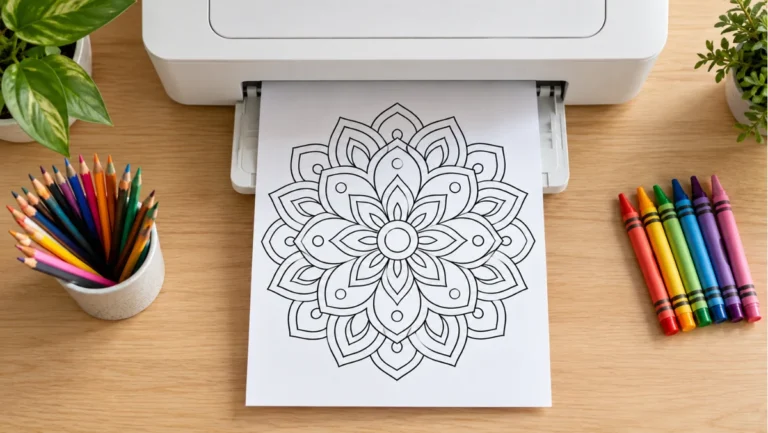
A printer is the first. Any home inkjet or laser printer works fine for coloring pages. Color ink is not required, because coloring pages are black line art. A black cartridge alone will print every page in this collection.
Paper is the second. Regular copy paper prints crayon and colored pencil work well. If your child likes markers, keep a small stack of heavier paper on hand, since thin paper lets marker ink soak through.
The file is the third. Most quality coloring pages come as PDFs. A PDF holds the exact page size and keeps the lines sharp no matter how you scale it. That is why it prints far more reliably than a saved image.
Once you have those three, the rest takes under a minute.
Step 1: Download the coloring page
Find the page you want and click the download button. The file saves to your Downloads folder on a computer, or to Files on a phone or tablet.
Try to download from sites that give you a real PDF rather than asking you to screenshot an image. A screenshot loses quality and often prints blurry or off center. Every pack on our site downloads as a clean, print ready PDF, so you can skip that problem entirely.
If the page opens in your browser instead of downloading, that is fine too. You can print straight from the browser tab. Printing from the saved PDF gives you slightly more control, which matters when a page misbehaves.
Step 2: Open and preview the file
Open the PDF by double clicking it. On a computer it opens in Adobe Acrobat Reader, Preview on a Mac, or your web browser. Any of these prints correctly.
Take a quick look at the page first. Notice whether it fills the sheet or sits inside a border. Notice the shape, since a tall picture and a wide picture need different orientation settings. This five second check saves you a wasted sheet later.
Then press the print shortcut. On Windows that is Ctrl and P together. On a Mac it is Command and P. On a phone you tap the share icon, then Print. The print window opens, and this is where the real work happens.
Step 3: Set the paper size and orientation
Two settings decide whether your page fits the sheet. Get these right and most problems disappear.
Paper size must match the file. Coloring pages are usually built for US Letter, which measures 8.5 by 11 inches, or for A4, which measures 210 by 297 millimeters. Letter is standard in the United States and Canada. A4 is standard almost everywhere else. If your printer is loaded with Letter paper but the file expects A4, the picture will not line up. Set the paper size in the print window to whatever is actually in your tray.
Orientation should match the picture. A tall image needs portrait. A wide image needs landscape. Most coloring pages are portrait, so that is usually already selected. Switch it only if the preview shows the picture lying sideways.
Watch the preview on the right side of the print window as you change these. It updates live. When the picture sits centered and upright on the sheet, you are ready for the setting that trips people up most.

Step 4: Choose the right scaling
Scaling controls how big the picture prints. This one setting causes more failed prints than everything else combined, so it is worth understanding.
Your print window offers a few scaling choices. The exact wording depends on your device.
“Fit to Page” or “Fit” stretches or shrinks the picture so it fills the whole sheet. Pick this when you want the biggest possible image and do not care about exact size. It is the safest choice for everyday coloring.
“Actual Size” or “100%” prints the picture at the exact size the designer built. Pick this when the page has a specific layout, such as a color by number key or a bordered frame that should stay intact.
“Shrink oversized pages” or “Shrink to fit” only makes things smaller and never larger. This is the setting that prints your page as a stamp in the corner. If your page comes out small, this option is usually the reason.
Set scaling to “Fit to Page” for your first print. If the result looks stretched or the proportions seem off, print again with “Actual Size” instead. One of the two will look right.
Step 5: Print and check the result
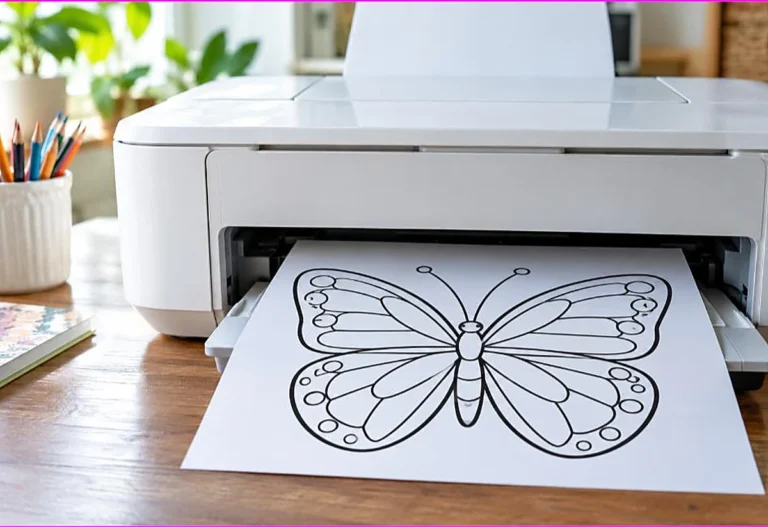
Load your paper, confirm the copy count, and press print. Pull the first page and look it over. Are the lines crisp and dark? Does the picture sit where you expected? Is anything cut off at the edges?
If the lines look pale, your printer may be low on ink or set to draft mode. Open the quality setting and choose “Normal” or “Best.” If the page printed small or clipped, revisit the scaling and paper size from the steps above. Print troubleshooting almost always comes back to those two settings.
Once one page looks right, the rest of the pack will print the same way. You can raise the copy count and print a set for the whole class or a birthday party without checking each one.
How to print a coloring page from your phone
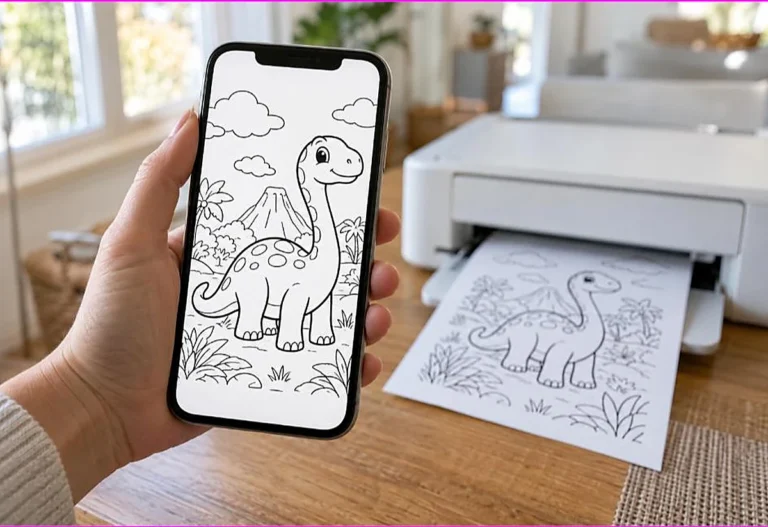
Plenty of parents never touch a computer for this. Phone printing works well when your printer is on the same Wi-Fi network.
On an iPhone or iPad, open the PDF, tap the share icon, then tap Print. Select your printer, set the paper size, choose “Fit to Page,” and print. Apple calls this AirPrint, and most modern printers support it.
On an Android phone, open the PDF, tap the menu, then Print. You may need the maker’s app, such as HP Smart, Canon Print, or Epson iPrint, for full control. These free apps also let you scale the page and pick paper size.
If your printer is older and has no wireless, email the PDF to yourself, open it on a computer connected to the printer, and print from there. Our full walkthrough on printing from a phone covers each brand in more detail.
Choosing paper for the best results
Paper matters more than most people expect. The right sheet makes colors look brighter and stops markers from ruining the page underneath.
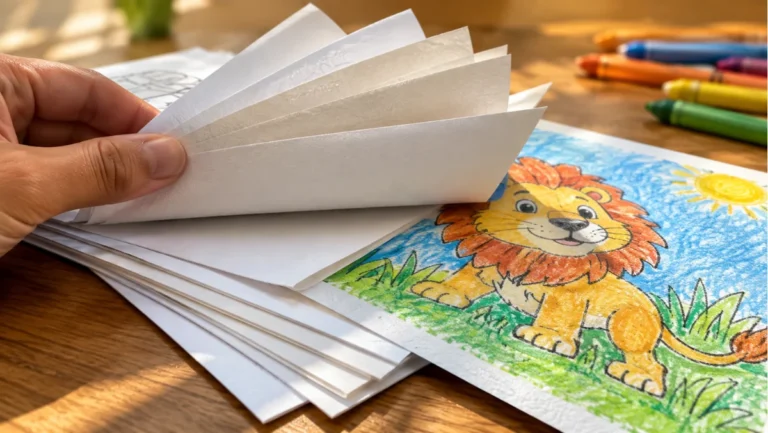
Standard copy paper, around 80 gsm, handles crayons and colored pencils with no trouble. It is cheap, and you likely have a full ream already. For most family coloring, it is all you need.
Heavier paper, around 120 gsm, suits markers and heavier coloring. The extra thickness slows ink from bleeding through to the next sheet. Cardstock, from 150 to 200 gsm, is sturdier still and works well for pages kids will keep, frame, or hang.
Bright white paper makes colors pop more than cream or recycled stock. Matte finishes take crayon and pencil better than glossy, which can smear. For a deeper look at weights and finishes, see our guide to the best paper for coloring pages.
One habit saves ink and paper: print a single test page before running a large batch. You confirm the settings once, then print with confidence.

Common printing problems and quick fixes
A few issues come up again and again. Here is how to clear each one fast.
The page prints too small. Change scaling from “Shrink to fit” to “Fit to Page.” Confirm the paper size matches the file. Our guide to pages printing too small or cut off breaks this down step by step.
Part of the picture is cut off. The image is running into the printer’s margin. Turn on borderless printing if your printer supports it, or reduce the margins in the print window. Matching the paper size to the file also helps.
The lines look faint or gray. Raise the print quality to “Normal” or “Best,” and check your ink or toner level. A clogged inkjet nozzle can also cause faint lines, which a nozzle clean from the printer settings usually fixes.
Nothing centers correctly. Try printing from Adobe Acrobat Reader rather than a browser. Acrobat handles page sizing more reliably than most browsers do.
If a page still refuses to print full size after all this, the issue is almost always the scaling setting fighting with the paper size. Our dedicated fix for pages that will not print full size solves that exact conflict.
Make your pages last longer
A little prep turns a one time print into something reusable, which saves paper over a school year.
Slide a printed page into a clear sheet protector and hand your child a dry erase marker. They color, wipe it clean, and start again. This is perfect for restaurants, car trips, and quiet time.
For something sturdier, laminate the page. A home laminator seals the sheet so it survives spills and repeated use. Our guide on how to laminate coloring pages shows the no heat method too, which uses self seal pouches and needs no machine.
Storing your files well helps just as much. Keep downloaded PDFs in dated folders by theme so you can reprint a favorite in seconds instead of hunting for it again.
Frequently asked questions about print coloring pages
Do I need a color printer to print coloring pages?
No. Coloring pages are black and white line art, so a black ink or toner cartridge prints every page. You add the color yourself with crayons, markers, or pencils.
What paper size should I use?
Use US Letter in the United States and Canada, and A4 in most other countries. Set the paper size in the print window to match the paper loaded in your printer, and the page will fit correctly.
Why does my coloring page print so small?
The scaling is set to “Shrink to fit” or a percentage below 100%. Change it to “Fit to Page” and confirm the paper size matches the file. That fixes it in almost every case.
Can I print coloring pages without a printer?
Yes. Save the PDF to a USB drive or cloud account and print it at a public library, an office supply store, or a pharmacy photo counter. Libraries are usually the cheapest option.
Is it cheaper to print at home or at a shop?
For a few pages now and then, home printing costs pennies per sheet. For large batches in color, a print shop can work out cheaper because of bulk ink pricing. For plain black line art, home printing almost always wins.
Start printing
Home printing comes down to four settings: paper size, orientation, scaling, and quality. Match the paper size to the file, keep orientation on portrait, set scaling to “Fit to Page,” and print at normal quality. Check one test page, then print as many as you like.
Ready to try it? Browse our free printable coloring pages and download your first PDF. Every page is built to print cleanly at home with no sign up needed.