How to Print Coloring Pages From Your Phone (iPhone and Android)
Quick answer
To print from your phone, open the PDF or image, tap Share or the menu, choose Print, and pick your printer. iPhones use AirPrint; Android uses the built-in print service or your printer’s app (HP Smart, Canon, Epson). No wireless printer? Save the file to the cloud and print from a computer, or email it to a print shop.
By the TheColoringPages.net team. Reviewed for accuracy, September 2026.
This guide to Coloring Pages From Phone gives clear, practical answers, drawing on mobile printing standards and years of hands on coloring.
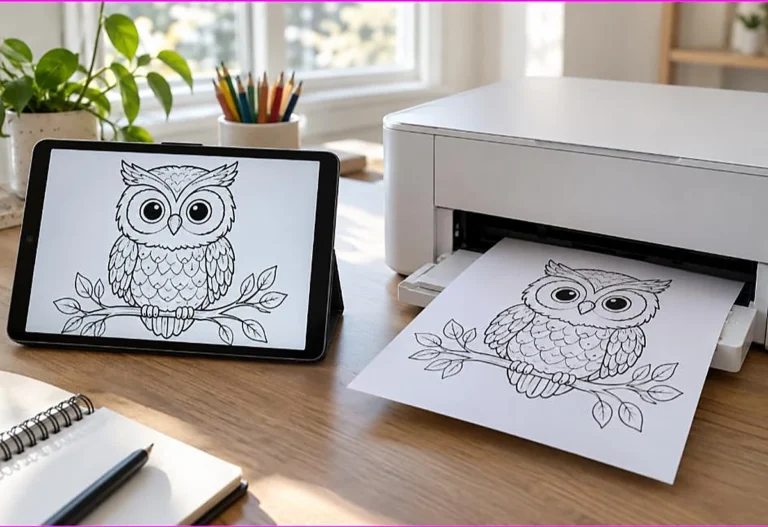
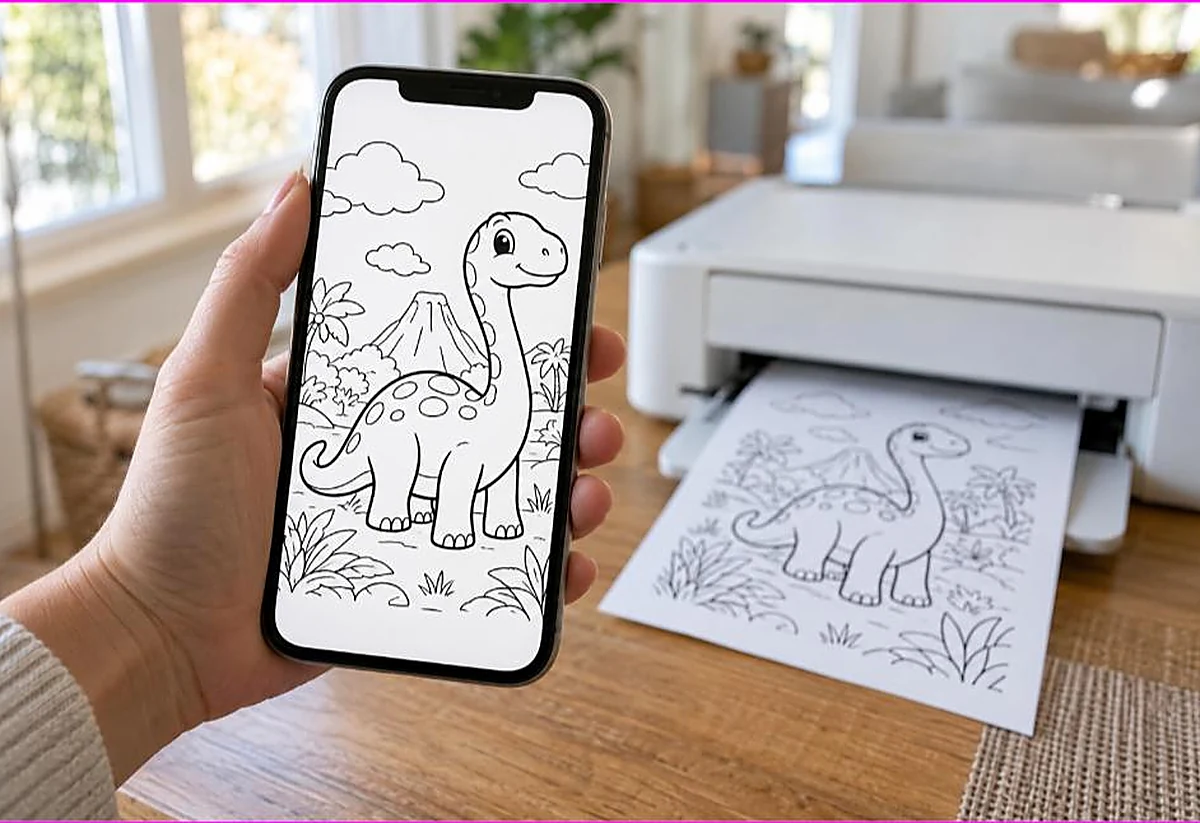
You do not need a computer to print a coloring page anymore. If you have a phone and a wireless printer, you can go from finding a page to holding a printed sheet in under a minute. Many parents never use anything else.
This guide walks through phone printing for both iPhone and Android, shows you which free apps give you the most control, and covers what to do if your printer has no wireless at all.
Quick answer: To print a coloring page from your phone, download the PDF, open it, and tap the share icon, then Print. On iPhone this uses AirPrint. On Android you may need the printer maker’s free app, such as HP Smart or Canon Print. Select your printer, set the paper size, choose “Fit to Page,” and print.

Before you start: what you need
Phone printing works best when two things are true.
Your printer and your phone are on the same Wi-Fi network. This lets the phone find and talk to the printer wirelessly. Most printers made in the last several years support this.
You have the coloring page saved as a PDF on your phone. When you download a page, it saves to Files on an iPhone or to your Downloads on Android. A PDF prints far more reliably than a screenshot, so download the real file rather than capturing an image of it.
If your printer is older and has no Wi-Fi, you can still print from your phone with a small workaround, covered near the end of this guide.
How to print from an iPhone or iPad
Apple builds printing right into iOS through a feature called AirPrint, so most printers work with no extra app.
Open the coloring page PDF in the Files app or wherever you saved it. Tap the share icon, the square with an arrow pointing up. Scroll down the share menu and tap Print.
The print screen opens. Tap “Printer” and choose your printer from the list. If it does not appear, make sure the printer is on and connected to the same Wi-Fi as your phone.
Now set your options. Choose the paper size, usually Letter in the United States or A4 elsewhere. Look for a scaling option and set it to fit the page. Set the number of copies. Then tap Print in the top corner.
That is the whole process. Once your printer is saved, future pages print in just a few taps.
How to print from an Android phone
Android printing works a little differently across brands, but the path is similar.
Open the PDF in your Files app or Google Drive. Tap the menu, usually three dots, and look for Print. Android includes a “Default Print Service” that finds many wireless printers automatically.
If your printer does not appear, or you want more control over size and quality, install the free app from your printer’s maker. HP users get HP Smart. Canon users get Canon PRINT. Epson users get Epson iPrint. Brother users get Brother iPrint and Scan. These apps connect straight to the printer and give you full settings.
Once connected, choose your printer, set the paper size, set scaling to fit the page, and print. The maker’s app usually offers the clearest scaling controls, which helps if a page prints small.
Getting the size right on a phone
Phones give you fewer settings than a computer, but the ones you need are there.
The most important is scaling, sometimes shown as “Fit to Page” or a scale percentage. Set it to fit so the picture fills the sheet. If a page prints small with a border, this is the setting to change.
Paper size is the other key one. Match it to the paper in your printer, Letter or A4. A mismatch here can shift or shrink the picture.
If your phone print menu is too basic to fix a stubborn page, move to a computer for the full range of options. Our guide on pages printing too small or cut off covers the extra desktop controls.
What if your printer has no Wi-Fi?
Plenty of good printers are wired only, with no wireless. You can still print your phone’s coloring pages with one of these routes.
Email the PDF to yourself, then open it on any computer connected to the printer and print from there. This is the simplest option and needs no setup.
Use a USB connection if your phone and printer support it, though this is less common and often needs an adapter.
Save the PDF to a cloud account like Google Drive or iCloud, then open it on a connected computer and print. This keeps your files handy across devices too.
If you have no printer at all, you can still get pages printed. Save the PDF to a USB drive or cloud, and print at a library, an office supply store, or a pharmacy. Our guide on printing coloring pages without a printer lists the cheapest options.

Handling multi page packs on a phone
Many coloring downloads are multi page PDF packs. Your phone can handle these too.
To print only certain pages, look for a page range option in the print screen and enter the numbers you want. This saves paper when you only need one or two pages from a larger pack.
To print the whole pack, just leave the range set to all pages. The printer works through them in order.
Saving the pack to your Files or Drive means you can reprint any page later without downloading again, which is handy when a child asks for the same picture twice.
Common phone printing problems
A few issues come up, and each has a quick fix.
The printer does not appear. Confirm the printer is on and on the same Wi-Fi as your phone. Restarting the printer often makes it show up.
The page prints small. Set scaling to “Fit to Page.” If your phone menu lacks that option, install the printer maker’s app, which gives fuller control.
The print is faint. This is an ink or quality issue rather than a phone issue. Check the ink level and print quality. Our guide on printer settings for coloring pages covers faint lines.
Nothing prints at all. Make sure the printer has paper and no error light, then try sending the job again. A quick printer restart clears most stuck jobs.
Saving pages to your phone the right way
How you save a coloring page on your phone affects how well it prints, so it is worth getting right.
When you tap a download link, choose to save the PDF to Files on an iPhone or to your Downloads folder on Android. This keeps the real file, which prints sharp and at the correct size. Avoid screenshotting the page, since a screenshot is a low quality image that often prints blurry or wrongly sized.
If a page opens inside your browser instead of downloading, look for a download or share icon to save it as a PDF first. Printing from the saved PDF gives you more control than printing from a browser tab on a phone.
Saving pages into a folder or a cloud app like Google Drive also means you can reprint favorites later without downloading again. This helps when a child asks for the same picture more than once.
Printing multiple copies from your phone
Parents often need several copies of one page, such as for siblings or a class. Phones handle this easily.
In the print screen, look for the copies option and set the number you want before you print. The printer runs off that many identical pages in one go. This is faster than printing one, then starting over.
If you need copies of several different pages, open each PDF and print it in turn, or combine them into one file first if you have an app that merges PDFs. For a large batch, though, a print shop may be cheaper than home ink, as covered in our guide on printing without a printer.

Battery, storage, and connection tips
A few small things keep phone printing smooth.
Keep your phone and printer close during printing, since a weak Wi-Fi signal can drop the job partway. If a print fails, moving nearer the router or the printer often fixes it.
Clear space for the file if your phone storage is nearly full, since a large PDF pack needs room to download. Deleting old files or clearing your downloads helps.
Keep the printer’s app updated on Android, since makers fix connection bugs in updates. An outdated app is a common reason a printer suddenly stops appearing.
Why phone printing suits busy parents
Phone printing has quietly become the easiest way to get a coloring page in a child’s hands, and it fits how families actually live.
The whole process happens on the device already in your pocket. A child asks for a page, you find it, download it, and print it in the time it takes to boil the kettle. There is no computer to boot up and no cable to find. For a rainy afternoon or a sudden quiet time need, that speed matters.
It also travels with you. At a relative’s house or a holiday rental, you can print to any wireless printer nearby without carrying a laptop. Save a few favorite packs to your phone or cloud account, and you always have coloring pages ready wherever you are.
The one thing to set up ahead of time is the printer connection, so add your home printer to your phone once. After that, every future page is just a few taps. Our guide on how to print coloring pages at home covers the wider setup that applies to phones too.
Printing straight from social apps
Many parents find coloring pages while scrolling social apps, and printing from there needs one extra step.
Images you see inside a social feed are low quality and often watermarked, so printing them directly gives a poor result. Instead, follow the link to the actual coloring page website, then download the proper PDF from there. The extra tap is worth it for a clean, full size print.
Be cautious with pages that ask you to screenshot rather than download a file. A screenshot is a low resolution image that prints blurry and rarely fills the sheet. A site that offers a real PDF download, like ours, gives you a page built to print sharp.
Once you have the PDF saved to your phone, the printing steps above apply as normal. So the rule is simple: leave the social app, get the real file, then print.
Frequently asked questions about coloring pages from phone
How do I print a coloring page from my iPhone?
Open the PDF, tap the share icon, then tap Print. Choose your printer, set the paper size and “Fit to Page,” and tap Print. This uses AirPrint, which works with most modern printers.
How do I print from an Android phone?
Open the PDF, tap the menu, then Print. Use the built in print service, or install your printer maker’s free app such as HP Smart or Canon PRINT for full control. Then choose your printer and print.
Why won’t my printer show up on my phone?
The printer and phone must be on the same Wi-Fi network. Confirm the printer is on and connected, and restart it if it does not appear. That resolves most connection problems.
Can I print from my phone without Wi-Fi?
Yes. Email the PDF to yourself and print from a connected computer, or save it to a cloud account and open it on a computer linked to the printer.
Why does my page print small from my phone?
The scaling is not set to fill the sheet. Choose “Fit to Page,” or install the printer maker’s app for better scaling control if your phone menu is too basic.
The takeaway on coloring pages from phone
Phone printing is quick once your printer is set up. On iPhone, use the share menu and AirPrint. On Android, use the print service or your printer maker’s app. Set the paper size and “Fit to Page,” and you are done. No computer required.
Ready to try it from your phone? Browse our free printable coloring pages, download a PDF, and print it in a few taps. Every page is built to print cleanly.