Why Won’t My Coloring Pages Print Full Size? (The Fit to Page Fix)
Quick answer
When a page won’t print full size, the fix is in the print settings: choose “Actual size” or “Fit to printable area,” confirm the paper size is correct, and make sure “Auto-rotate and center” is on. Printing from the original PDF rather than a screenshot also keeps the design at full size.
By the TheColoringPages.net team. Reviewed for accuracy, September 2026.
This guide to Full Size gives clear, practical answers, drawing on image scaling and years of hands on coloring.
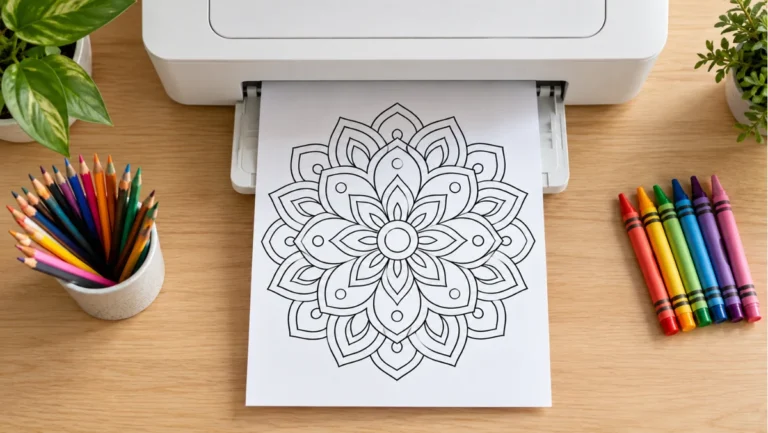
You downloaded a lovely full page picture. You printed it. And it came out shrunk into the middle of the sheet with a thick white border all around, or squeezed into a corner like a postage stamp. It happens to almost everyone, and it has nothing to do with your printer being broken.
The cause is almost always a single setting in the print window. Once you know which one, you can fix it in about ten seconds and never fight it again. This guide shows you the exact setting, plus a handful of backup fixes for the stubborn cases.
Quick answer: Coloring pages print small when the scaling is set to “Shrink to fit” or a percentage below 100%. Fix it by choosing “Fit to Page,” or by setting the scale to 100% or “Actual Size.” Also confirm the paper size matches the file, either US Letter or A4, and turn off any extra margin option. Check the print preview before printing.

Why this happens in the first place
Every print window has a scaling control. It decides how large the picture prints on the sheet. Most of the time it is set to a safe default that shrinks anything oversized so nothing gets cut off. That default protects documents, but it works against full page coloring sheets.
Here is what goes wrong. A coloring page is built to fill an entire sheet, right to the edges. But printers cannot print all the way to the physical edge. There is always a small unprintable margin. When the software notices the picture reaches into that margin, it shrinks the whole thing to make it fit inside the printable area. The result is a smaller picture floating in a white frame.
So the page is not too big for the paper. The software is just being overly cautious. You override that caution with the right scaling choice, and the picture fills the sheet as intended.
Fix 1: Change scaling to Fit to Page
This is the fix that works in the large majority of cases. Do this first.
Open your PDF and press Ctrl and P on Windows, or Command and P on a Mac. The print window opens. Look for the scaling or “Page Sizing” option. The wording changes by device and program, but you will see choices like these:
– Fit to Page, or Fit – Actual Size, or 100% – Shrink oversized pages, or Shrink to fit – Custom Scale, with a percentage box
Select Fit to Page. This tells the printer to scale the picture so it fills the whole sheet, edge to edge as much as the printer allows. Watch the preview on the right. The picture should jump to fill the page.
If your program only offers a percentage box, type 100 into it. That prints the picture at full designed size. If it still looks slightly small, “Fit to Page” will push it the rest of the way.
Print one page and check. For most people, the problem is already solved. If your page still misbehaves, move to the next fix.
Fix 2: Match the paper size to the file
If the scaling is right but the picture still sits wrong, the paper size is the likely culprit.
Coloring pages are built for one of two sizes. US Letter measures 8.5 by 11 inches and is standard in the United States and Canada. A4 measures 210 by 297 millimeters and is standard almost everywhere else. A4 is slightly taller and narrower than Letter.
When the file expects one size and your printer is set to the other, the picture will not line up. It may shrink, shift, or leave an uneven border. Here is how to align them.
In the print window, find the paper size setting. Set it to match the paper actually loaded in your printer. If you are in the United States, that is almost always Letter. If your file was built for A4 and you only have Letter paper, choose “Fit to Page” as well, and the printer will scale the A4 design onto your Letter sheet. The reverse works too.
The key is consistency. The paper size in the software, the paper size the file expects, and the paper in your tray should all agree. When they do, the picture fills the sheet cleanly.
Fix 3: Turn off extra margins
Some print windows and browsers add their own margins on top of everything else. These margins push the picture inward and shrink it.
Look in the print window for a “Margins” setting. Set it to “None” or “Minimum.” In some browsers this hides under a “More settings” link, so expand that section if you do not see it.
If your printer supports borderless printing, turn it on. This lets the printer lay ink closer to the edge, which removes the white frame and lets the picture reach full size. Not every printer has this feature, but many photo capable inkjets do.
After changing margins, glance at the preview again. The white border should shrink or vanish, and the picture should grow to fill more of the sheet.
Fix 4: Update or switch your PDF reader
Now and then the problem is the program, not the settings. An old or basic PDF viewer can size pages badly.
The most reliable free tool for printing PDFs is Adobe Acrobat Reader. It handles page sizing more accurately than most browsers and built in viewers. If your page prints wrong from a browser tab, download the PDF, open it in Acrobat Reader, and print from there. This alone fixes many stubborn cases.
If you already use Acrobat Reader and pages still print small, make sure it is up to date. An outdated version can carry old sizing bugs that a free update clears.

Fix 5: Check the printer’s own scaling
Here is the sneaky one that traps people who have tried everything else. Your printer has its own settings, separate from the print window on your screen. Sometimes a scaling option is switched on deep inside the printer driver, and it overrides what you chose on screen.
In the print window, click “Printer Properties,” “Preferences,” or “Printer Settings.” A second window opens with the driver’s own controls. Look for any scaling, “fit,” or “reduce or enlarge” option. Set it to 100% or “Off.” Then return to the main print window, confirm “Fit to Page,” and print.
This second layer of settings is easy to miss because it hides behind an extra click. When two scaling settings fight each other, the picture ends up the wrong size no matter what you do on the first screen.
Still not working? Print from a different app
If a page refuses to cooperate after all five fixes, try printing it from another program entirely. Open the PDF in a different reader, or open it in your browser if you were using Acrobat, or the other way around. Different programs interpret page sizing in slightly different ways, and one of them will usually get it right.
You can also try printing from a phone. Open the PDF on your phone, tap share, then Print, and set “Fit to Page.” Phone printing sometimes sidesteps a desktop setting that is stuck. Our guide on printing coloring pages from a phone walks through it.
If the file itself is the problem, downloading a fresh copy can help too. A corrupted or half downloaded PDF can print at odd sizes.
How to avoid this next time
A little habit prevents the whole headache going forward.
Always glance at the print preview before you print. The preview shows exactly what will come out. If the picture looks small or framed in the preview, fix the scaling before you waste a sheet, not after.
Save your working settings, too. Once you find the combination that prints a full page, your printer often remembers it for next time. So the fix you apply today usually sticks for future pages from the same source.
Downloading from a source that builds pages correctly also helps. Every page on our site is set up to print full size with “Fit to Page,” so you spend less time fiddling with settings. For the complete setup routine, see our guide on how to print coloring pages at home.
How the fix differs by device
The scaling setting lives in a slightly different place depending on where you print from. Knowing where to look saves you hunting through menus.
On Windows with Adobe Acrobat Reader, the scaling choices sit in the middle of the print window under “Page Sizing and Handling.” You will see “Size,” “Poster,” “Multiple,” and “Booklet.” Click “Size,” then choose “Fit.” This is the most reliable route on a Windows machine.
On a Mac using Preview, the print window shows a “Scale” option and a “Scale to Fit” choice. Pick “Scale to Fit,” then “Fill entire paper” for the largest picture, or “Print entire image” to keep the full picture with a small border. Preview hides some options behind a “Show Details” button, so click that if you do not see them.
In Chrome, Edge, or Safari, the scaling control sits under “More settings.” Expand that section, find “Scale,” and set it to “Fit to printable area” or “Default.” Browsers vary the most, so if one browser prints wrong, another may print right.
Because each program words the setting differently, the trick is to look for anything that says “fit,” “scale,” or “size,” and steer it toward filling the page rather than shrinking it.

What to do when only part of a batch prints wrong
Sometimes one page in a pack prints small while the others print fine. This usually means that single file was built at a different size, or it downloaded incompletely.
First, download that page again, since a half finished download can carry the wrong dimensions. Then open it on its own, rather than as part of a merged file, and apply “Fit to Page.” Handling the odd page by itself lets you set scaling just for it without disturbing the pages that already work.
If several pages from the same source all print small, the issue is your default setting, not the files. Fix the scaling once, and it will usually carry across the whole set.
Saving your settings for good
The most satisfying part of this fix is that it often only needs doing once. Printers and PDF readers tend to remember your last used settings.
After you get a full size print, your printer usually keeps “Fit to Page” and the correct paper size selected for the next job. Some PDF readers let you save a preset, so you can name your coloring settings and apply them in one click. Check your reader’s print window for a “Save preset” or “Save as default” option.
This means the ten seconds you spend today can save you from ever fighting the setting again. The first page is the only one you should have to think about.
Small pictures versus cut off pictures
It is worth knowing that a page printing small and a page printing cut off are two different problems with two different causes.
A small picture comes from scaling, which the fixes above solve. A cut off picture, where part of the image runs off the edge, usually comes from margins or a paper size mismatch. If your issue is that the picture is too big and losing its edges rather than too small, our guide on coloring pages printing too small or cut off covers that side in detail.
Frequently asked questions about full size
Why does my coloring page print so small?
The scaling is set to “Shrink to fit” or a percentage below 100%. Change it to “Fit to Page,” or set the scale to 100%. Also confirm the paper size in the software matches the paper in your printer.
What does Fit to Page do?
Fit to Page scales the picture up or down so it fills the whole sheet, right to the edges the printer allows. It is the best choice when you want the largest possible coloring page.
Why is there a white border around my printed page?
Printers cannot print to the very edge of the paper, so a small margin is normal. To reduce it, set margins to “None” or “Minimum” and turn on borderless printing if your printer supports it.
My page is A4 but I only have Letter paper. What do I do?
Set the paper size to Letter and choose “Fit to Page.” The printer will scale the A4 design onto your Letter sheet. The picture may shift slightly in proportion, but it will fill the page.
I tried everything and it still prints small. What now?
Check the printer’s own settings behind “Printer Properties” for a second scaling option, and set it to 100%. If that fails, print from a different program, such as Adobe Acrobat Reader instead of a browser.
The fix in one line
Set scaling to “Fit to Page,” match the paper size to the file, and clear any extra margins. That combination prints a full size coloring page in nearly every case, and once your printer remembers it, you are done for good.
Ready to print a fresh page the right way? Browse our free printable coloring pages and download one to test your new settings.