How to Print a PDF Coloring Page (The Format Built for Clean Prints)
Quick answer
To print a PDF coloring page, open it in any PDF reader, choose Print, select your printer, set paper size to Letter or A4, and pick “Actual size” or “Fit” so nothing is cut off. Print in black and white to save ink. PDFs are the best format because they keep the lines crisp at any size.
By the TheColoringPages.net team. Reviewed for accuracy, September 2026.
This guide to Pdf Coloring Page gives clear, practical answers, drawing on the PDF format and years of hands on coloring.
Most quality coloring pages come as PDFs, and there is a good reason for that. A PDF holds the exact page layout and keeps the lines sharp at any size. Once you know how to open and print one, you get a clean, full page result every time, whether you use a computer, a browser, or a phone.
This guide shows you how to print a PDF coloring page from every common program, and why the PDF format saves you the sizing headaches that image files cause.
Quick answer: To print a PDF coloring page, download the file, open it in Adobe Acrobat Reader or your web browser, and press Ctrl and P on Windows or Command and P on a Mac. Set scaling to “Fit” or 100%, choose the correct paper size, and print. Acrobat Reader gives the most reliable sizing.

Why PDF is the best format for coloring pages
A PDF is a fixed page format. It stores the picture, the page size, and the layout together, locked in place. When you print it, the printer receives exact instructions, so the page comes out the way the designer built it.
This matters because the alternative, a saved image like a JPG or PNG, has no fixed page size. It is just a grid of pixels. When you print an image, the software has to guess how big to make it on the sheet, and it often guesses wrong. That is why images print at odd sizes, blurry, or off center.
PDFs also keep line art crisp at any scale. Coloring page outlines stay sharp whether you print small or large, because a well made PDF holds the artwork as clean lines rather than a fixed grid of dots. For a fuller comparison, see our guide on PDF versus PNG coloring pages.
The short version is this. A PDF is built to print. An image is built to view on a screen. For coloring pages you plan to print, PDF wins.
Print a PDF from Adobe Acrobat Reader
Adobe Acrobat Reader is free, and it prints PDFs more reliably than almost anything else. If you print coloring pages often, it is worth installing.
Open the PDF in Acrobat Reader by double clicking the file. Press Ctrl and P on Windows, or Command and P on a Mac. The print window opens.
Look for “Page Sizing and Handling” in the middle of the window. Click “Size,” then choose “Fit” to fill the sheet, or “Actual size” to print at the exact designed dimensions. Confirm the paper size at the top matches the paper in your printer, either Letter or A4. Then press Print.
Acrobat’s sizing options are clearer and more dependable than most browsers, which is why pages that print wrong elsewhere often print perfectly here. If a coloring page has been fighting you, try Acrobat first.
Print a PDF from your web browser
You do not need any special software. Chrome, Edge, Safari, and Firefox all print PDFs well.
When you open a coloring page link, it often loads right in your browser tab. Press Ctrl and P or Command and P to open the print window. Look under “More settings” to find the scaling control, usually called “Scale.” Set it to “Fit to printable area” or “Default.” Confirm the paper size, then print.
Browsers vary in how they word these options, and some hide the useful ones behind that “More settings” link, so expand it if you do not see scaling. If one browser prints a page wrong, another often gets it right, so switching browsers is a quick fix worth trying.
The one browser habit worth keeping is checking the preview. Every browser shows a live preview on the right. If the picture looks small or clipped there, fix the scaling before you print.
Print a PDF from your phone or tablet
Phone printing works well when your printer is on the same Wi-Fi network, and no computer is needed.
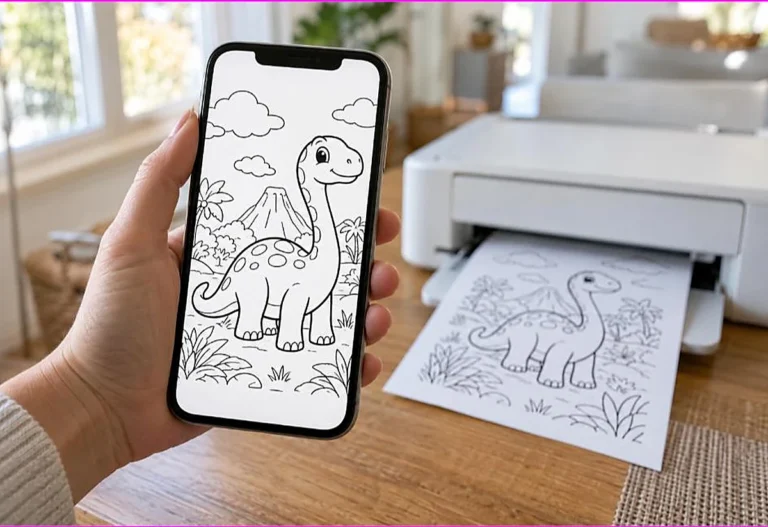
On an iPhone or iPad, open the PDF, tap the share icon, then tap Print. Choose your printer, set the paper size, pick “Fit to Page,” and print. Apple’s AirPrint handles most modern printers automatically.
On an Android phone, open the PDF, tap the menu, then Print. For full control over scaling and paper size, install the free app from your printer’s maker, such as HP Smart, Canon Print, or Epson iPrint. These apps give you the same options a computer would.
Our full guide on printing coloring pages from a phone covers each brand and the no Wi-Fi workaround in more detail.

Common PDF printing problems and quick fixes
A few issues come up with PDFs, and each has a fast fix.
If the page prints small with a white border, the scaling is set to shrink. Change it to “Fit” or 100%. Our guide on pages that will not print full size walks through this.
If part of the picture is cut off, the paper size likely does not match the file, or the margins are too wide. Match the paper size and reduce the margins.
If the PDF will not open at all, it may have downloaded incompletely. Download it again, or open it in a different program. A fresh copy fixes most corrupted files.
If the lines print faint, raise the quality to “Normal” and check your ink. This is a print quality issue, not a PDF issue, and our guide on printer settings for coloring pages covers it.
Getting the most from a PDF pack
Many coloring downloads come as a multi page PDF pack rather than a single sheet. A few tricks make these easier to use.
You do not have to print the whole pack. In the print window, look for a “Pages” box and type the page numbers you want, such as 3 to 5, or a single number. This prints only the pages you need and saves paper.
You can also print two pages on one sheet to make a mini book or save paper. Look for “Multiple” or “Pages per sheet” and choose 2. Our guide on how to resize a coloring page covers this half page method.
Saving the PDF to a folder means you can reprint any page later without downloading again. This is handy for favorites your child asks for again and again.
Why our pages print cleanly
Part of a smooth print is the file itself. A PDF built at a standard size, with clean line art, prints predictably. A poorly made file fights your settings no matter what you do.
Every coloring page on our site downloads as a proper PDF sized for standard paper, so it prints full and centered with “Fit to Page.” Starting with a good file removes most of the friction. For the complete printing routine, see our guide on how to print coloring pages at home.
How PDFs keep line art crisp
It is worth understanding why a PDF stays sharp, because it explains why coloring sites use the format.
A good coloring page PDF stores the picture as line art with clean, defined edges. When you scale it up or down, the software redraws those lines at the new size, so they stay smooth. Print it small for a bookmark or large for a poster, and the outlines look clean either way.
A saved image works differently. It is a fixed grid of colored dots called pixels. When you enlarge an image, the software has to stretch those dots, and the lines turn jagged or fuzzy. This is why a coloring page saved as a JPG often looks rough when printed big.
For coloring, sharp lines matter. Clean edges are easier for a child to follow and give a neater finished page. That is the practical reason to always download the PDF version when a site offers one.
Reading the print preview
Every program shows a print preview, and learning to read it saves paper on every job.
The preview is the picture of your page on the right side of the print window. It shows exactly what will come out, including the size, position, and any border. Before you print, glance at it and ask two questions. Does the picture fill the sheet the way you want? Is any part running off the edge?
If the preview shows a small picture with a wide border, fix the scaling. If it shows the picture spilling past the sheet, fix the margins or paper size. Adjust until the preview looks right, then print. Trusting the preview means you almost never waste a sheet finding out something was wrong.

Keeping your PDFs organized
If you download coloring pages often, a little organization saves time later.
Save your PDFs into folders by theme or by child, so you can find a favorite fast. Name the files clearly, since a name like “dinosaur pack” beats a string of numbers when you are hunting for it later. Keep the folders in a cloud account, and you can reach them from any device to reprint on demand.
This matters because children ask for the same page again and again. A tidy folder means you reprint in seconds instead of searching your downloads or fetching the file a second time. Our guide on how to store and organize coloring pages covers this for both files and printed sheets.
Printing a PDF on different devices
The steps shift a little depending on the device in your hand, so here is a quick map.
On a Windows computer, Adobe Acrobat Reader is the most reliable choice. Open the file, press Ctrl and P, set “Size” to “Fit,” confirm the paper size, and print. A browser works too, with the scaling under “More settings.”
On a Mac, Preview opens PDFs by default and prints them well. Press Command and P, click “Show Details” if you do not see the options, choose “Scale to Fit,” and print. Acrobat Reader works on a Mac too if you prefer it.
On a Chromebook, PDFs open in the built in viewer or in Chrome. Press Ctrl and P, expand “More settings,” set the scale to fit, and print to a connected or cloud printer.
On a phone or tablet, open the PDF and use the share menu to reach Print, as covered in our guide on printing coloring pages from a phone.
Whatever the device, the goal is the same: open the PDF, set scaling to fit, match the paper size, and print. The PDF format behaves consistently across all of them, which is a large part of its value.
Frequently asked questions about pdf coloring page
How do I print a PDF coloring page?
Download the file, open it in Adobe Acrobat Reader or your browser, and press Ctrl and P or Command and P. Set scaling to “Fit” or 100%, confirm the paper size, and print.
What is the best program to print a PDF?
Adobe Acrobat Reader is the most reliable free option, since it handles page sizing more accurately than most browsers. Browsers work well too, and switching between them can fix a stubborn page.
Why won’t my PDF coloring page open?
It may have downloaded incompletely. Download it again, or open it in a different program such as Acrobat Reader. A fresh copy resolves most files that will not open.
Can I print just one page from a PDF pack?
Yes. In the print window, find the “Pages” box and enter the page number or range you want. This prints only those pages and saves paper.
Do I need to pay for software to print PDFs?
No. Adobe Acrobat Reader is free, and every major browser prints PDFs at no cost. You never need paid software to print a coloring page.
The bottom line
PDFs are built for printing, which is why coloring pages use them. Open the file in Acrobat Reader or your browser, set scaling to “Fit,” match the paper size, and print. The format does the hard work of keeping your page sharp and correctly sized.
Ready to try it? Browse our free printable coloring pages and download a PDF to print. Every page is built to come out clean on the first try.